Google Service Accounts
Set up Google service accounts with domain-wide delegation for Gmail, Sheets, Drive, Calendar, and other Google services
Google service accounts with domain-wide delegation let your workflows access Google APIs on behalf of users in your Google Workspace domain — without requiring each user to complete an OAuth consent flow. This is ideal for automated workflows that need to send emails, read spreadsheets, or manage files across your organization.
For example, you could build a workflow that iterates through a list of employees, impersonates each one to read their Google Docs, and uploads the contents to a shared knowledge base — all without requiring any of those users to sign in.
Prerequisites
Before adding a service account to Sim, you need to configure it in the Google Cloud Console and Google Workspace Admin Console.
1. Create a Service Account in Google Cloud
Go to the Google Cloud Console and select your project (or create one)
Navigate to IAM & Admin → Service Accounts
Click Create Service Account, give it a name and description, then click Create and Continue
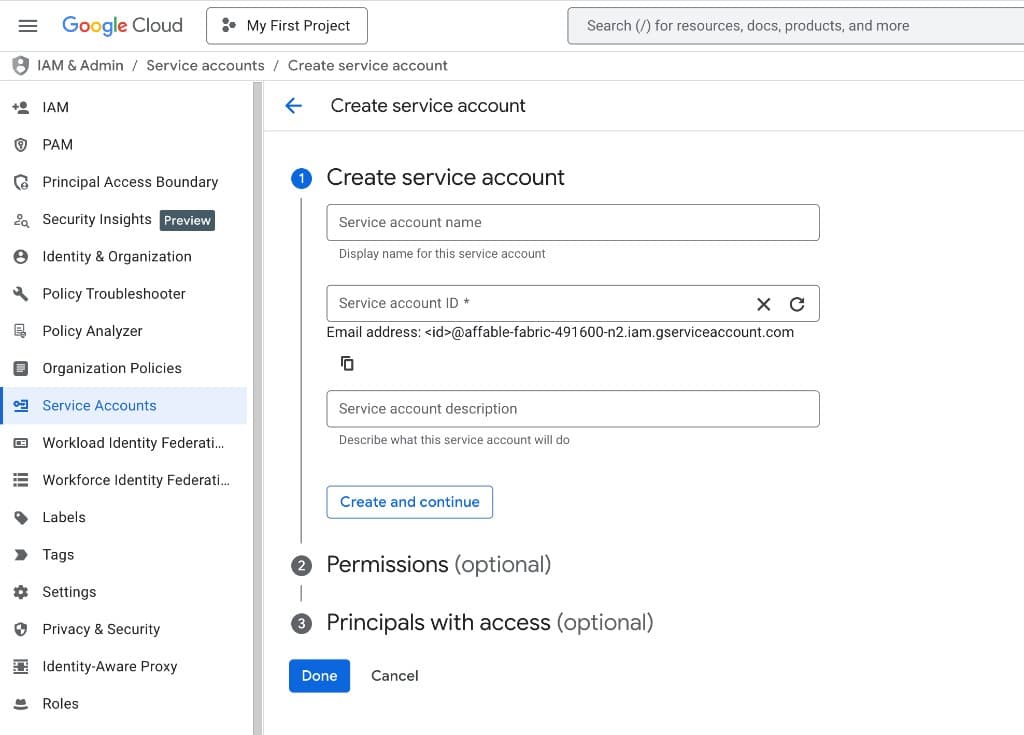
Skip the optional role and user access steps and click Done
Click on the newly created service account, go to the Keys tab, and click Add Key → Create new key
Select JSON as the key type and click Create. A JSON key file will download — keep this safe
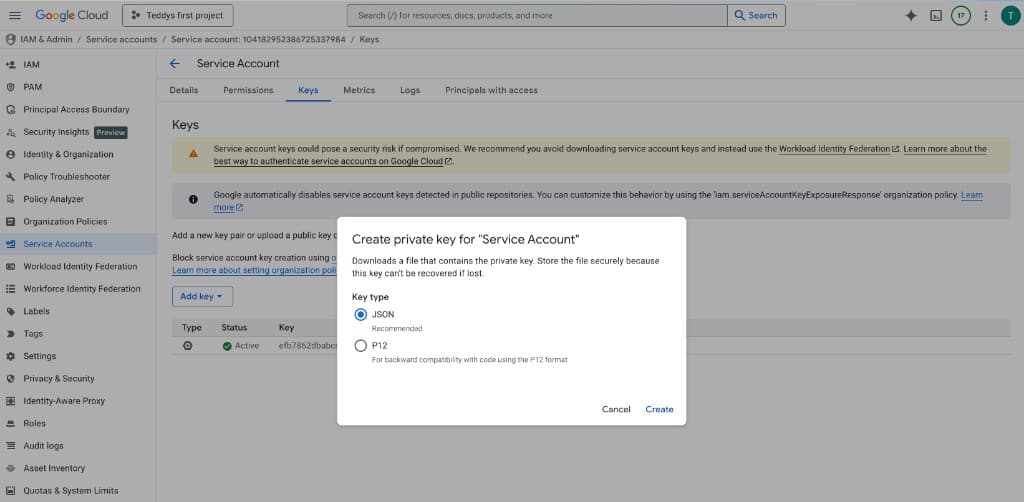
The JSON key file contains your service account's private key. Treat it like a password — do not commit it to source control or share it publicly.
2. Enable the Required APIs
In the Google Cloud Console, go to APIs & Services → Library and enable the APIs for the services your workflows will use. See the scopes reference below for the full list of APIs by service.
3. Set Up Domain-Wide Delegation
In the Google Cloud Console, go to IAM & Admin → Service Accounts, click on your service account, and copy the Client ID (the numeric ID, not the email)
Open the Google Workspace Admin Console and navigate to Security → Access and data control → API controls
Click Manage Domain Wide Delegation, then click Add new
Paste the Client ID from your service account, then add the OAuth scopes for the services your workflows need. Copy the full scope URLs from the scopes reference below — only authorize scopes for services you plan to use.
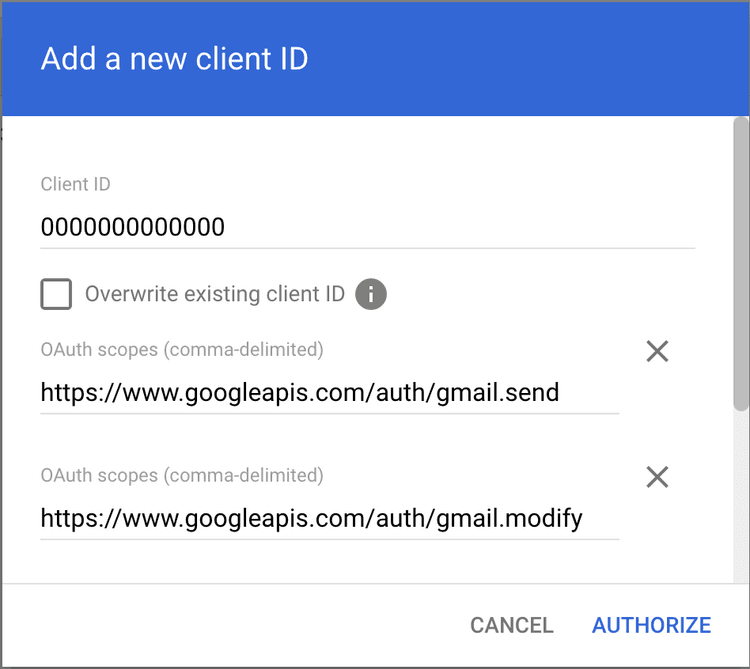
Click Authorize
Domain-wide delegation must be configured by a Google Workspace admin. If you are not an admin, send the Client ID and required scopes to your admin.
Scopes Reference
The table below lists every Google service that supports service account authentication in Sim, the API to enable in Google Cloud Console, and the delegation scopes to authorize. Copy the scope string for each service you need and paste it into the Google Workspace Admin Console.
| Service | API to Enable | Delegation Scopes |
|---|---|---|
| Gmail | Gmail API | https://www.googleapis.com/auth/gmail.sendhttps://www.googleapis.com/auth/gmail.modifyhttps://www.googleapis.com/auth/gmail.labels |
| Google Sheets | Google Sheets API, Google Drive API | https://www.googleapis.com/auth/drivehttps://www.googleapis.com/auth/drive.file |
| Google Drive | Google Drive API | https://www.googleapis.com/auth/drivehttps://www.googleapis.com/auth/drive.file |
| Google Docs | Google Docs API, Google Drive API | https://www.googleapis.com/auth/drivehttps://www.googleapis.com/auth/drive.file |
| Google Slides | Google Slides API, Google Drive API | https://www.googleapis.com/auth/drivehttps://www.googleapis.com/auth/drive.file |
| Google Forms | Google Forms API, Google Drive API | https://www.googleapis.com/auth/drivehttps://www.googleapis.com/auth/forms.bodyhttps://www.googleapis.com/auth/forms.responses.readonly |
| Google Calendar | Google Calendar API | https://www.googleapis.com/auth/calendar |
| Google Contacts | People API | https://www.googleapis.com/auth/contacts |
| BigQuery | BigQuery API | https://www.googleapis.com/auth/bigquery |
| Google Tasks | Tasks API | https://www.googleapis.com/auth/tasks |
| Google Vault | Vault API, Cloud Storage API | https://www.googleapis.com/auth/ediscoveryhttps://www.googleapis.com/auth/devstorage.read_only |
| Google Groups | Admin SDK API | https://www.googleapis.com/auth/admin.directory.grouphttps://www.googleapis.com/auth/admin.directory.group.member |
| Google Meet | Google Meet API | https://www.googleapis.com/auth/meetings.space.createdhttps://www.googleapis.com/auth/meetings.space.readonly |
You only need to enable APIs and authorize scopes for the services you plan to use. When authorizing multiple services, combine their scope strings with commas into a single entry in the Admin Console.
Adding the Service Account to Sim
Once Google Cloud and Workspace are configured, add the service account as a credential in Sim.
Open your workspace Settings and go to the Integrations tab
Search for "Google Service Account" and click Connect
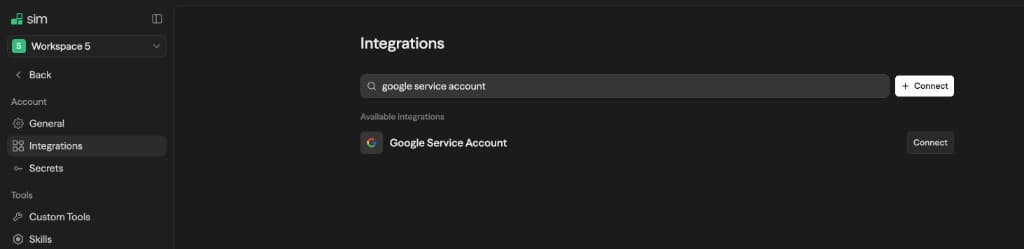
Paste the full contents of your JSON key file into the text area
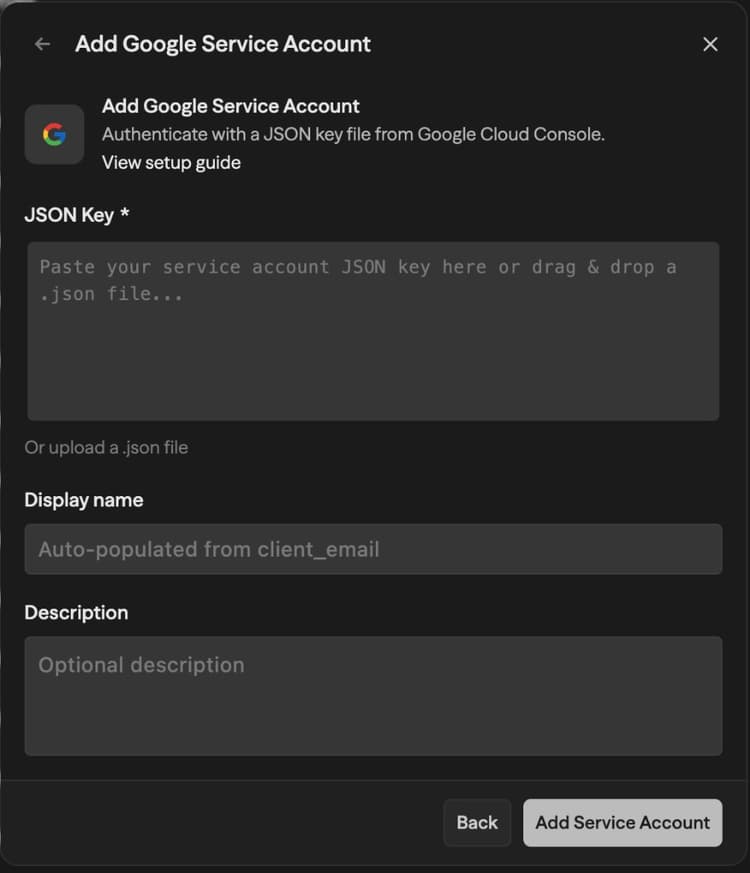
Give the credential a display name (the service account email is used by default)
Click Save
The JSON key file is validated for the required fields (type, client_email, private_key, project_id) and encrypted before being stored.
Using Delegated Access in Workflows
When you use a Google block (Gmail, Sheets, Drive, etc.) in a workflow and select a service account credential, an Impersonate User Email field appears below the credential selector.
Enter the email address of the Google Workspace user you want the service account to act as. For example, if you enter alice@yourcompany.com, the workflow will send emails from Alice's account, read her spreadsheets, or access her calendar — depending on the scopes you authorized.
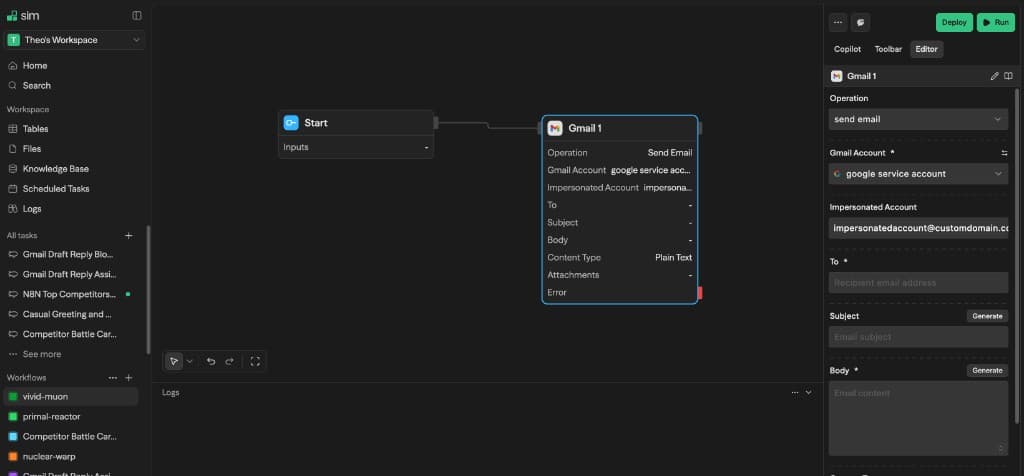
The impersonated email must belong to a user in the Google Workspace domain where you configured domain-wide delegation. Impersonating external email addresses will fail.